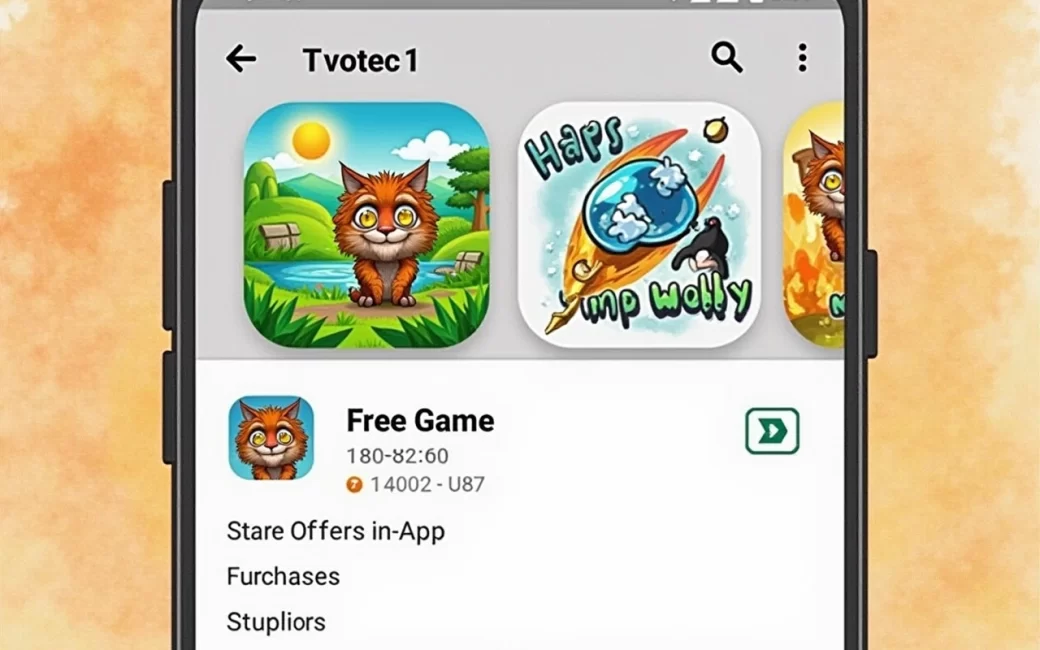
App is listed as free but shows the "Offers in-app purchases" label
A free app with in-app purchases is free to install — the label is the store's way of warning you, before you tap Install, that spending money is still possible once you're inside. Google Play and the Apple App Store both attach a purchase-type indicator to a listing's price line specifically because "$0" alone doesn't tell the whole story: the download costs nothing, but currency packs, extra levels, ad removal or a premium tier can all be sold after the app is on the device.
This is the first and most common of the five types worth understanding, because it accounts for a large share of what people actually install. Many of the apps that sit at the top of usage charts — games, social platforms, productivity tools with a free tier — are distributed this way: free to download, monetized entirely through purchases made later. The list of most popular Android apps compiled from Play Store data shows how many of the highest-reach titles fall into exactly this category rather than being sold upfront.
Before installing, it's worth doing two things:
- Read the price line, not just the icon. "Free" with a small "In-app purchases" note underneath means the developer expects at least some users to pay eventually.
- Open the store listing's purchase details. Both stores let you scroll to a section listing the actual products on offer — currency bundles, subscription tiers, one-time unlocks — usually with a price range, so you know the ceiling before you commit to using the app at all.
Any charge made through one of these purchases is billed to whichever payment method is on file with the Apple ID or Google account in use, not to the developer directly. That single fact is the reason the next section matters — the charge doesn't ask who is holding the phone.
A child or another user opens a game with consumable purchases
If someone else picks up the device and opens a game, any purchase they make is charged the same way a purchase made by the account owner would be — through the stored payment method, with no separate confirmation of who is actually pressing the buttons. Consumable purchases (in-game currency, extra lives, temporary boosts) are the type most often bought accidentally, because they're usually a single tap away and are designed to be bought repeatedly, unlike a one-time unlock.
The fix is a setting change, not a warning to be more careful:
- On iOS: go to Settings → Screen Time → Content & Privacy Restrictions → iTunes & App Store Purchases, and set "In-app Purchases" to Don't Allow, or require a password for every purchase under Settings → your name → Media & Purchases.
- On Android: open the Google Play app, tap your profile icon → Settings → Authentication → Require authentication for purchases, and choose "For all purchases through Google Play on this device."
- For a shared or family device: set up Family Sharing (iOS) or a Family Library with parental controls (Google Play) so purchases route through an approval request to the account holder instead of completing instantly.
These settings apply once and cover every app on the device, which is the point — they stop the purchase at the account level rather than relying on remembering to lock a single game.
A free trial or premium tier is started inside an app
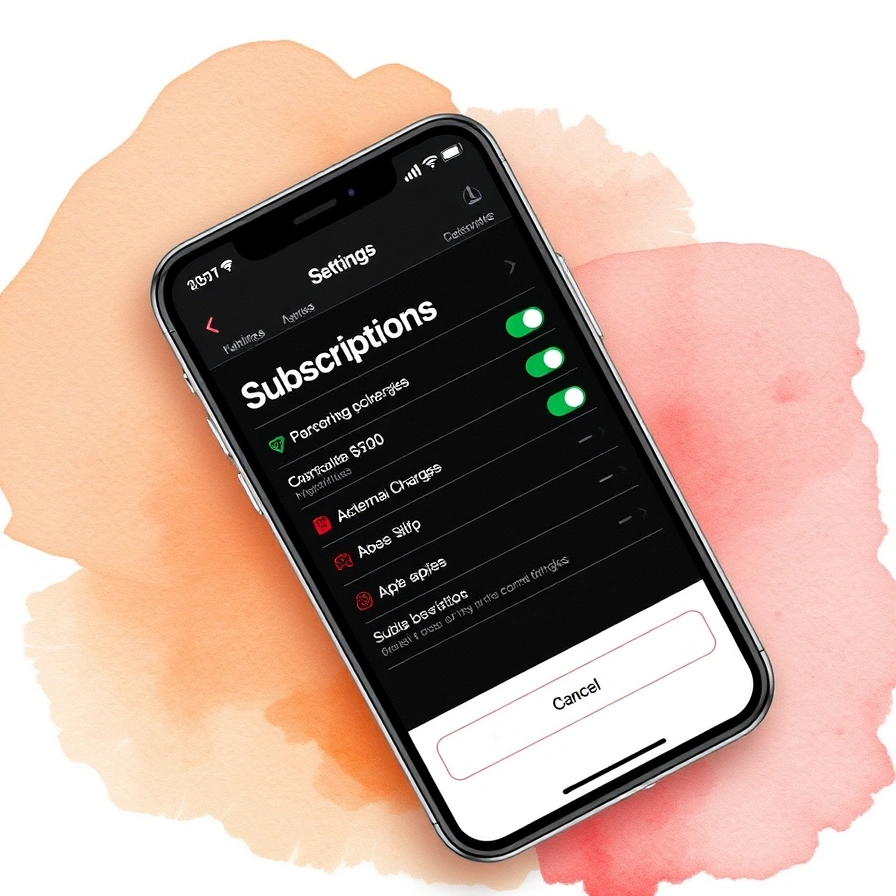
Starting a free trial or tapping "Upgrade to Premium" inside an app usually enrolls the account in a recurring subscription billed through the App Store or Google Play, not through the app itself. The app is the interface that offers the trial; the store is what actually holds the billing record, the renewal date and the cancellation control.
This distinction matters because charges continue automatically once a trial ends, and deleting the app does nothing to stop them — uninstalling removes the software, not the subscription record sitting on the store account. To actually cancel:
| Platform | Where to cancel | What deleting the app does instead |
|---|---|---|
| iOS | Settings → your name → Subscriptions | Removes the app only; billing continues |
| Android | Google Play app → profile icon → Payments & subscriptions → Subscriptions | Removes the app only; billing continues |
A subscription bought this way is also tied to the Apple ID or Google account, which is why it can reappear — as a still-active entitlement, not a repurchase — if the same app is reinstalled or installed on a second device signed into the same account. Family Sharing groups extend some subscriptions to other members of the group automatically, depending on what the developer has enabled, so it's worth checking the subscription's sharing setting rather than assuming it's tied to one phone.
The practical rule: if a charge is recurring, the only place to stop it is the subscriptions screen of the store account, never a setting inside the app itself.
Reader wants to avoid in-app spending entirely
The way to avoid in-app spending entirely is to choose an app that's paid upfront with no in-app products listed at all, rather than a free download that monetizes later. These sit at the opposite end of the same spectrum as the free-with-purchases apps covered above, and the store listing shows the difference plainly: a fixed price on the button instead of "Free," and no purchase-type line underneath it.
The practical distinction between the models:
- Paid-upfront app — one price, full functionality included, nothing further to buy. Once bought, updates and existing features are covered.
- Free, ad-supported app — no purchase price, revenue comes from advertising rather than transactions, so there's typically nothing to buy inside it either — though some apps combine ads with an optional "remove ads" purchase, which puts them back in the free-with-IAP category.
- Freemium app — free download, but meaningful functionality is deliberately withheld behind a purchase or subscription, distinct from an ad-supported app where the core functionality is already complete.
For someone who wants predictable cost, a paid-upfront app or a genuinely ad-only free app (checked against the store's purchase-type label) is the more reliable choice than a "free" listing that turns out to be freemium. Checking a listing on both platforms before deciding is straightforward — tools built for comparing how an app appears across the App Store and Play Store exist mainly for developers checking name availability, but the same listings they check also show, side by side, whether a given title is priced upfront or offers purchases on each platform.
One more thing worth knowing before buying: a one-time (non-consumable) unlock, unlike a subscription, is generally tied to the store account rather than the device, so it can usually be restored for free on a new phone through the store's "Restore Purchases" function — worth checking on the app's support page rather than assuming a re-purchase is required after a device change.
Google Play
Google Play is the storefront and billing system behind every Android app purchase described above — it's what actually processes the free download, the consumable purchase, and the subscription renewal, regardless of which app initiated the transaction. Every in-app charge on an Android device, whether it's a $2 currency pack or a monthly subscription, is billed through the same Play account, which is why a single setting (the authentication requirement covered earlier) can control purchases across every app installed from it.
This centralization is also why refunds and subscription management both happen outside the app: Google Play, not the individual developer, holds the transaction record, so a request to reverse a charge or cancel a renewal goes through Play's own purchase history rather than through customer support inside the game or tool that triggered it. For anyone trying to untangle an unexpected charge, the Play account's order history — not the app that was open at the time — is the first place to look.
In-app purchase (IAP)
An in-app purchase is any payment made inside an app after it's already installed, processed by the store's billing system rather than by the app developer directly. That single mechanism covers three different things that behave very differently once bought:
| Purchase type | What it buys | Can it be restored or reversed? |
|---|---|---|
| Consumable | Used-up items — currency, lives, boosts | No; each one is a new purchase |
| Non-consumable | Permanent unlock — a feature, ad removal, extra content | Usually restorable on a new device via the store account |
| Subscription | Ongoing access, billed on a recurring cycle | Cancels from the store's subscription screen; access continues until the paid period ends |
Knowing which of the three a given purchase falls into, before tapping to confirm it, is the difference between a charge that's a one-time decision and one that keeps renewing until it's actively stopped. The listing screen inside most apps names the type next to the price — "consumable," "one-time," or a renewal period like "monthly" — and it's the one line worth reading closely before entering payment details, on either platform.
If a charge does go through unexpectedly, the next step is a refund request through the store rather than the app: Apple's request goes through reportaproblem.apple.com, and Google's through the Play Store order history's "Request a refund" option, both of which route the claim to the store's billing team rather than the developer.